IO-Darts-Agent: User Guide
This guide walks you through setting up and using IO-Darts-Agent, from the first start to a complete system with all modules.
Note: IO-Darts-Agent is an unofficial project. It is not affiliated with, endorsed by or supported by Autodarts. The hub is meant for use in your local network only. Do not expose it to the internet and do not set up port forwarding to it.
Table of Contents
- What is IO-Darts-Agent?
- System Requirements
- Installation
- Initial Setup
- Web Interface Login
- The Dashboard
- Managing Modules
- WLED Module
- Game Display Module
- Darts Caller Module
- AI Providers
- Animation Generator
- Media Library
- Player Management
- Console
- Settings
- Developer Tools
- Installing New Modules
- FAQ
- Troubleshooting
What is IO-Darts-Agent?
IO-Darts-Agent is a local hub for your Autodarts board. It receives your board's live events (throws, turns, legs, matches) and uses them to trigger actions:
- Control LED lighting: your WLED lighting reacts to triples, 180s, busts or player changes
- Show the score: the score is shown fullscreen on a second screen or tablet
- Voice announcements: a darts caller announces scores, checkouts, busts and game shot
- AI features (optional): voice packs with ElevenLabs, animations with Runway or Higgsfield
- Extensible: further modules can be installed from Git repositories
IO-Darts-Agent is licensed under the PolyForm Noncommercial License 1.0.0 and is free for private, non-commercial use.
System Requirements
| Component | Requirement |
|---|---|
| Computer | Windows, macOS or Linux |
| Node.js | Version 22 or newer (only when running from source) |
| Browser | Current Chrome, Firefox, Safari or Edge |
| Network | The hub, all display devices and WLED controllers in the same local network |
| Autodarts | Autodarts account with email and password, and a board |
| ffmpeg | Optional, for transparent AI animations |
For the WLED module
- WLED-compatible LED controller (e.g. ESP8266 or ESP32 with WLED firmware)
- LED strip (e.g. WS2812B, SK6812)
For AI features
- An API key for the provider you want to use (e.g. ElevenLabs, Runway, Higgsfield). Generations cost credits at the provider.
Installation
Installation from source, including a dedicated Linux board PC, is described in the installation guide.
Short version for running from source:
git clone https://github.com/Castorio/io-darts-agent.git
cd io-darts-agent
npm run setup       # installs all dependencies
npm run build:app   # builds hub, web interface and modules
npm start
The web interface is then available at http://localhost:3000.
Initial Setup
Without a configuration the hub starts in setup mode. Open in your browser:
http://localhost:3000
From another device in your network, use the IP of the hub machine, e.g. http://192.168.1.100:3000.
The setup wizard has three steps.
Step 1: Security
Secure web interface? decides whether the web interface asks for a login:
- Off: no login required (only recommended for a local network)
- On: set and confirm a username (at least 3 characters) and a password (at least 6 characters)
Step 2: Autodarts Connection
Enter your Autodarts credentials:
- Email: the email address of your Autodarts account
- Password: your Autodarts password
- Board ID: the ID of your board (format
xxxxxxxx-xxxx-xxxx-xxxx-xxxxxxxxxxxx) - Click Test connection
How the login works:
- The hub logs in with email and password at the official Autodarts API (auth service v1).
- The access token is refreshed automatically before it expires. If the refresh fails, the hub logs in again with the stored password.
- Two-factor authentication (2FA) is not supported. An account with 2FA enabled cannot connect.
- Credentials are only stored on the hub machine (
dist/config/hub.config.json, in plain text) and only sent to Autodarts.
Step 3: Finish
The summary shows web authentication, Autodarts email and board ID. Click Finish Setup. The hub connects to Autodarts. With web authentication enabled you are taken to the login page, otherwise straight to the dashboard.
You can change email, password and board ID later under Settings > Autodarts.
Web Interface Login
When web authentication is enabled, the login page asks for the Username and Password of the web interface (not your Autodarts credentials). You log out with the button at the bottom of the sidebar.
The Dashboard
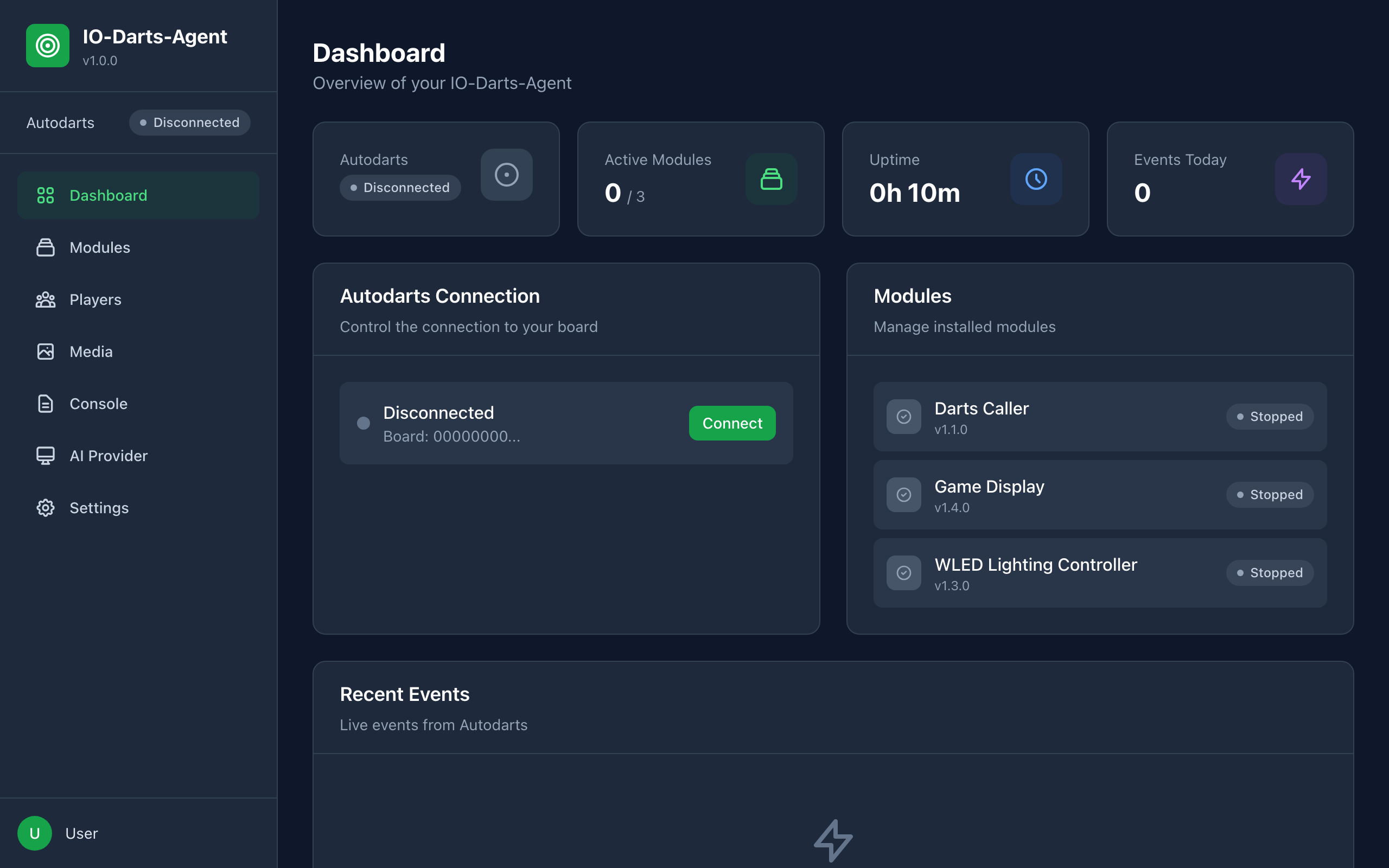
| Area | Description |
|---|---|
| Active Modules | Number of running modules |
| Uptime | Uptime of the hub |
| Events Today | Number of received events |
| Autodarts Connection | Connection status with a button to disconnect or connect, plus the active match |
| Modules | Installed modules with status, link to module installation |
| Recent Events | Live events from Autodarts |
Navigation
The sidebar shows the Autodarts connection status at the top and leads to all areas:
- Dashboard: overview
- Modules: manage and configure modules
- Players: player profiles with colors
- Media: images, sounds and animations
- Console: live logs
- AI Provider: API keys and models of the AI providers
- Settings: language, server, web login, Autodarts access, developer mode
Managing Modules
Modules add functions to the hub. Built in are WLED, Game Display and Darts Caller.
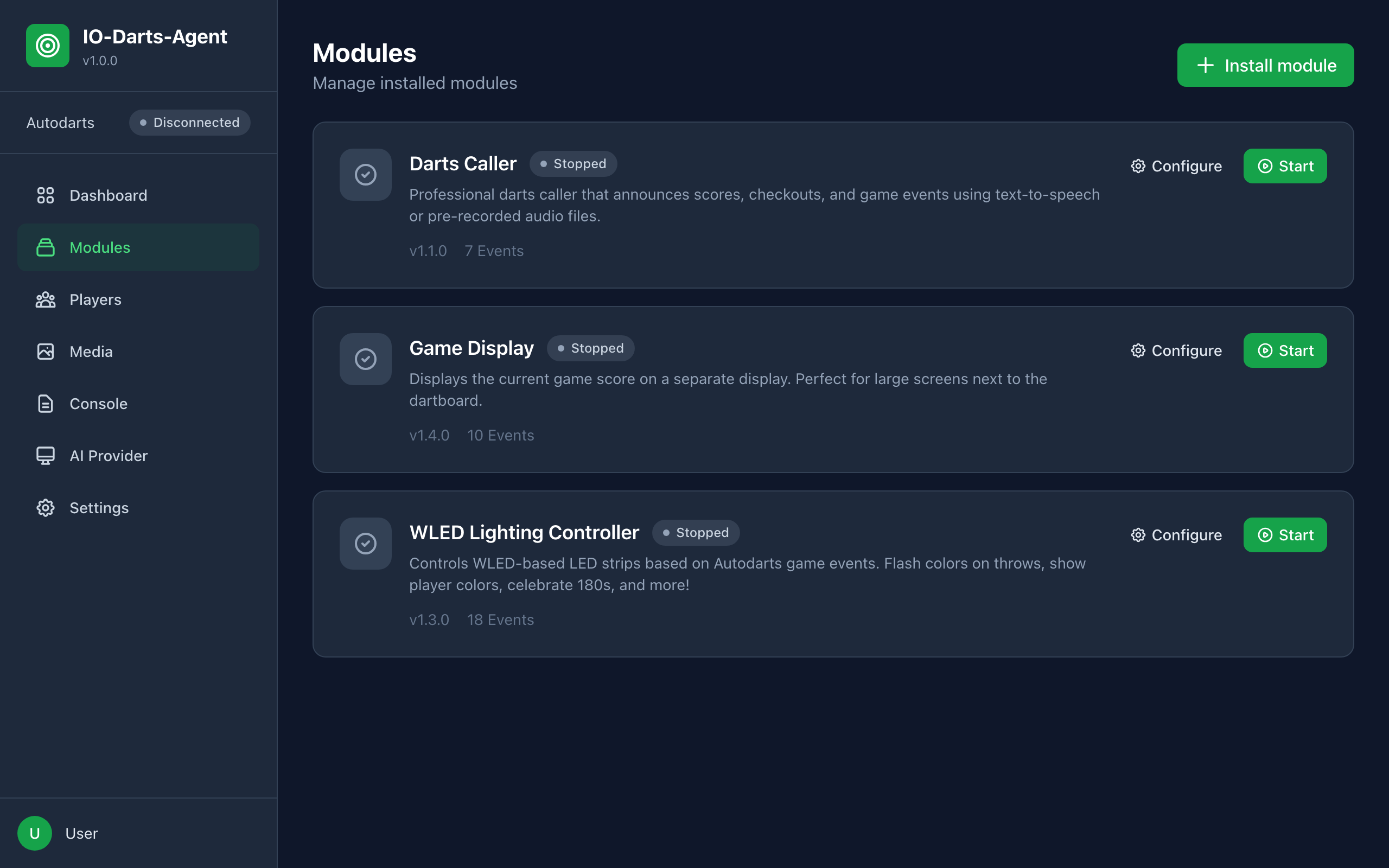
Module overview
Modules lists all installed modules with their status and the buttons Configure, Start or Stop. Built-in modules that are not installed yet appear under Available Modules and can be added with Install.
Module detail page
Clicking a module opens its detail page:
- Start, Stop, Restart
- Autostart: the module starts together with the hub
- Link to the module's own configuration page (WLED, Game Display, Darts Caller)
- Configuration: general module settings (for modules without their own configuration page; for the Darts Caller the same values as on the caller page)
- Intent Reactions: how the module reacts to intents from other modules (if supported)
- Statistics: restarts, start time, processed events, last error
- Danger Zone: Uninstall Module (deletes the module and its data)
WLED Module
The WLED module controls LED strips running WLED firmware based on game events.
Open the WLED configuration
- Go to Modules and open WLED Lighting Controller
- Click Configure event actions
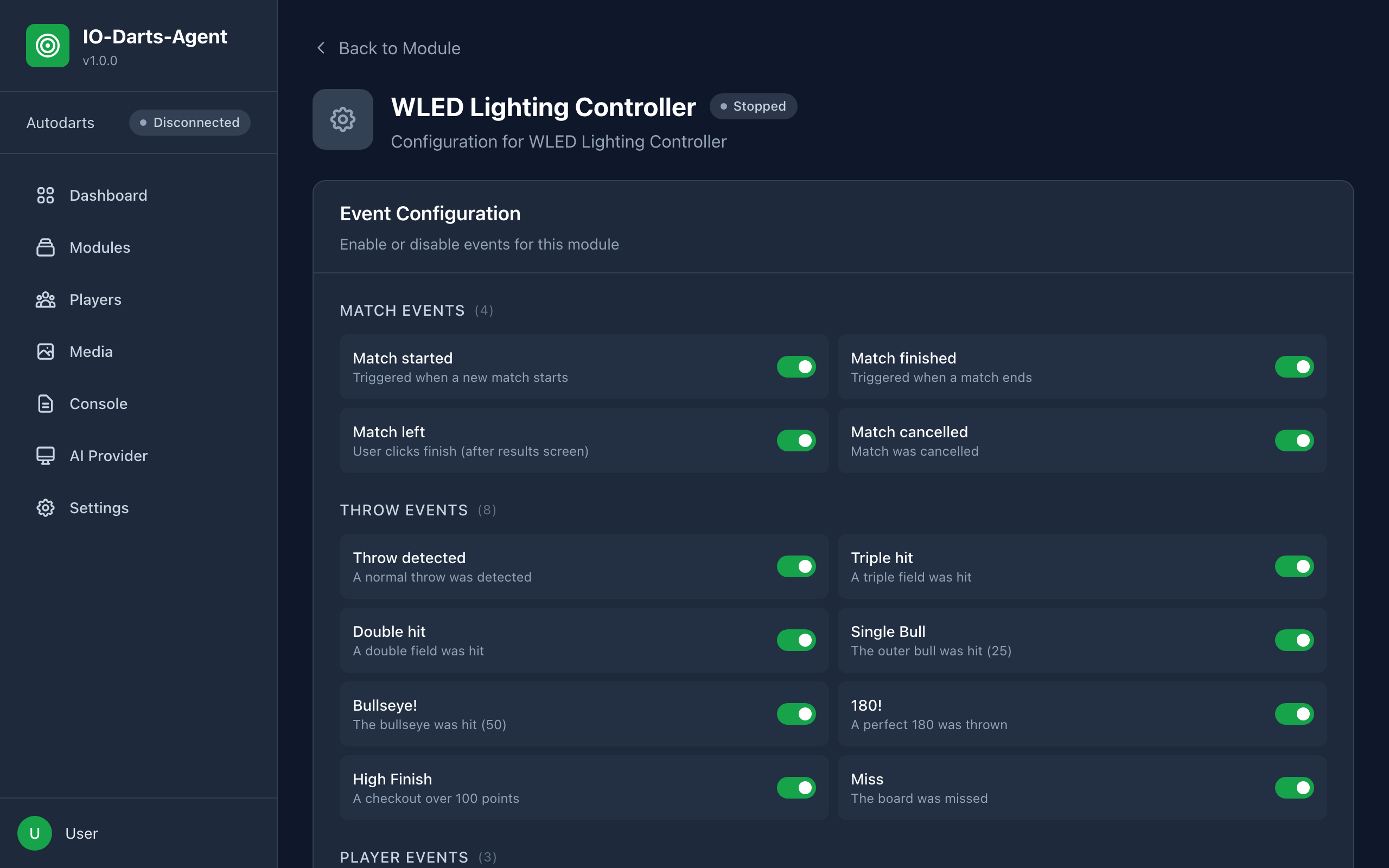
Connection
- WLED IP address: IP of the controller, e.g.
192.168.1.100 - Port: usually
80 - Fade Time (ms): global transition time in milliseconds, used by every action whose fade time is set to "Global". Empty (the default) keeps the controller's own default transition,
0means an instant change. - Strong turn from marks: how many marks in a Cricket turn fire the "Cricket: strong turn" action (3 to 9, default 6).
- Click Connect. The hub then loads presets and effects straight from the controller. Once a host is saved, the page connects by itself when it opens; Reconnect loads the lists again, for example after adding presets in WLED.
You can start or stop the module at the top right.
Event actions
Events are grouped:
| Group | Events |
|---|---|
| Match Events | Match started, Match finished, Match left, Match cancelled |
| Throw Events | Throw detected, Triple hit, Double hit, Single Bull, Bullseye!, 180!, Miss |
| Player Events | Player changed, Turn started, Turn finished |
| Board Events | Pulling darts, Darts pulled |
| Cricket | Cricket: field closed, Cricket: strong turn |
There is no "High Finish" event: the hub does not report a checkout value, so the module cannot detect it.
In a Cricket or Tactics game the 180! action does not fire; triple, double, single bull, bullseye and miss keep firing. The two Cricket actions kick in instead: Cricket: field closed as soon as a player closes a field with the third mark, Cricket: strong turn as soon as a turn reaches the marks threshold set above (once per turn).
For each event you choose an action type. The action editor is currently labeled in German only; the German label is given in brackets.
| Action type | Description |
|---|---|
| Preset | Activate a WLED preset stored on the controller |
| Effect (Effekt) | Play a WLED effect with up to three colors, speed and intensity |
| Color (Farbe) | Set a solid color |
| Off (Aus) | Turn the LEDs off |
| None (Keine) | No action |
Per action you can also set:
- Use player color (Spielerfarbe verwenden): use the current player's color instead of a fixed color
- Brightness (Helligkeit)
- Duration (Dauer): off, 0.5s, 1s, 2s, 3s or 5s. When it ends, the module sets the active player's color again, using the action configured for Player changed. It does not restore the previous WLED state. Without a Player changed action, or outside a match, the light stays as it is. With "off" the effect stays until the next event. For match start the duration is the delay before the player color is set; match end, match left and match cancel set nothing afterwards.
- Fade time (Übergangszeit): Global, instant (Sofort), 0.2s, 0.5s, 1s, 2s or 5s. "Global" uses the fade time from the connection settings. The value is stored in milliseconds and sent to WLED for this command only, so the controller's own default transition is not changed.
- Test (Testen): try the action on the controller right away
Save with Save Configuration.
Example configurations
| Event | Possible action |
|---|---|
| Match started | Effect "Rainbow", duration 2s |
| Player changed | Color with player color |
| Triple hit | Effect "Blink", duration 0.5s |
| Bullseye! | Gold color, duration 1s |
| 180! | Effect "Fireworks", duration 3s |
| Darts pulled | Color with player color |
Player colors
A player's color is determined like this:
- The color of the matching profile under Players (the profile name must match the Autodarts name, case does not matter)
- Otherwise the color of the player's position from the Player Colors section of the WLED configuration (up to 6 players)
Test player colors shows each position color on the LEDs.
Single-player games
- After the match starts (and after an optional start animation) the player color is set
- After every "Darts pulled" the player color is restored
- Both use the action of Player changed, so it should be a color with player color
Quick actions
At the bottom of the page: Rainbow Test, LEDs off, Green and Red to check the connection quickly.
Game Display Module
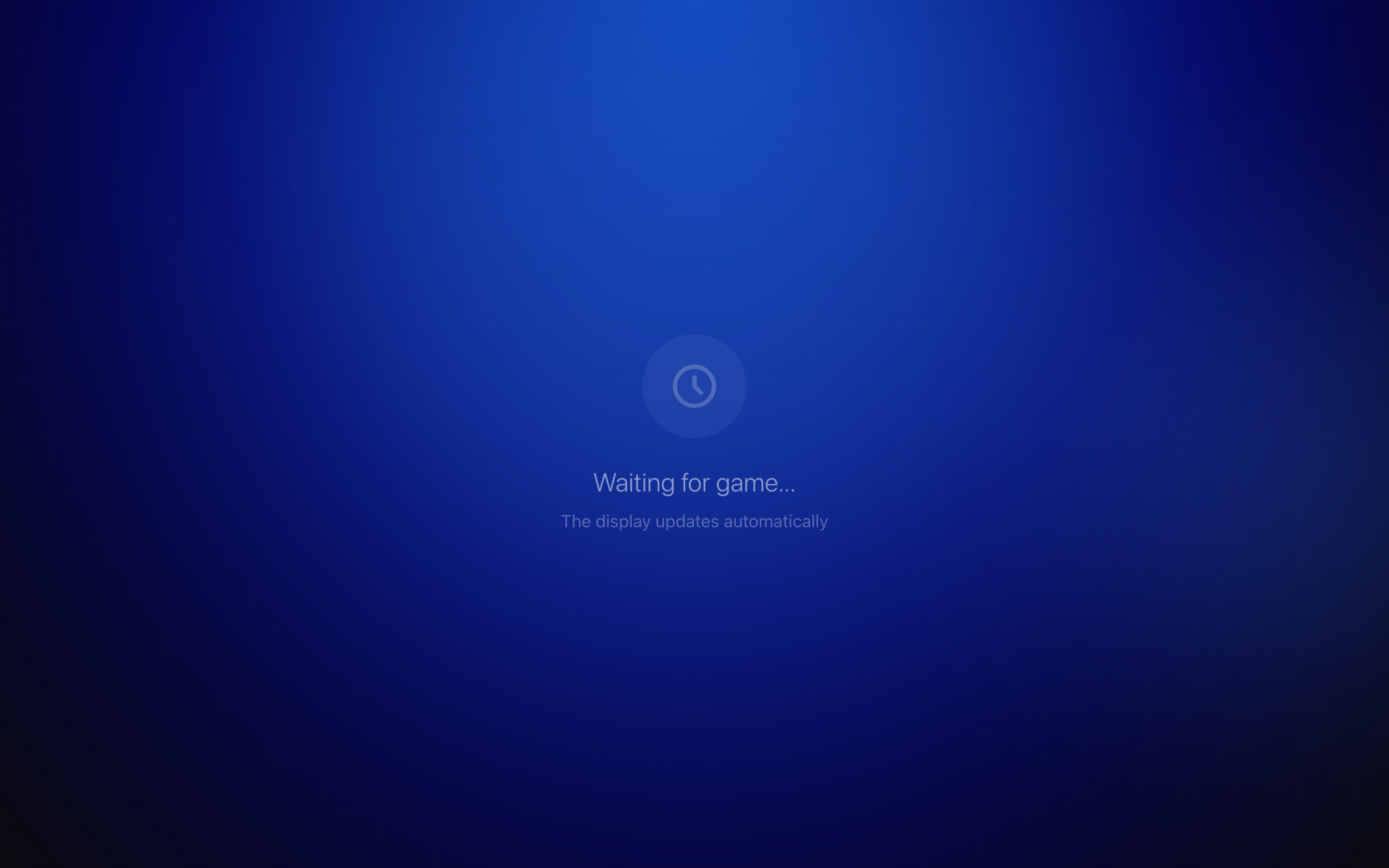
Shows the score fullscreen on a second screen, tablet or smart TV.
Open the configuration
- Go to Modules and open Game Display
- Click Configure display
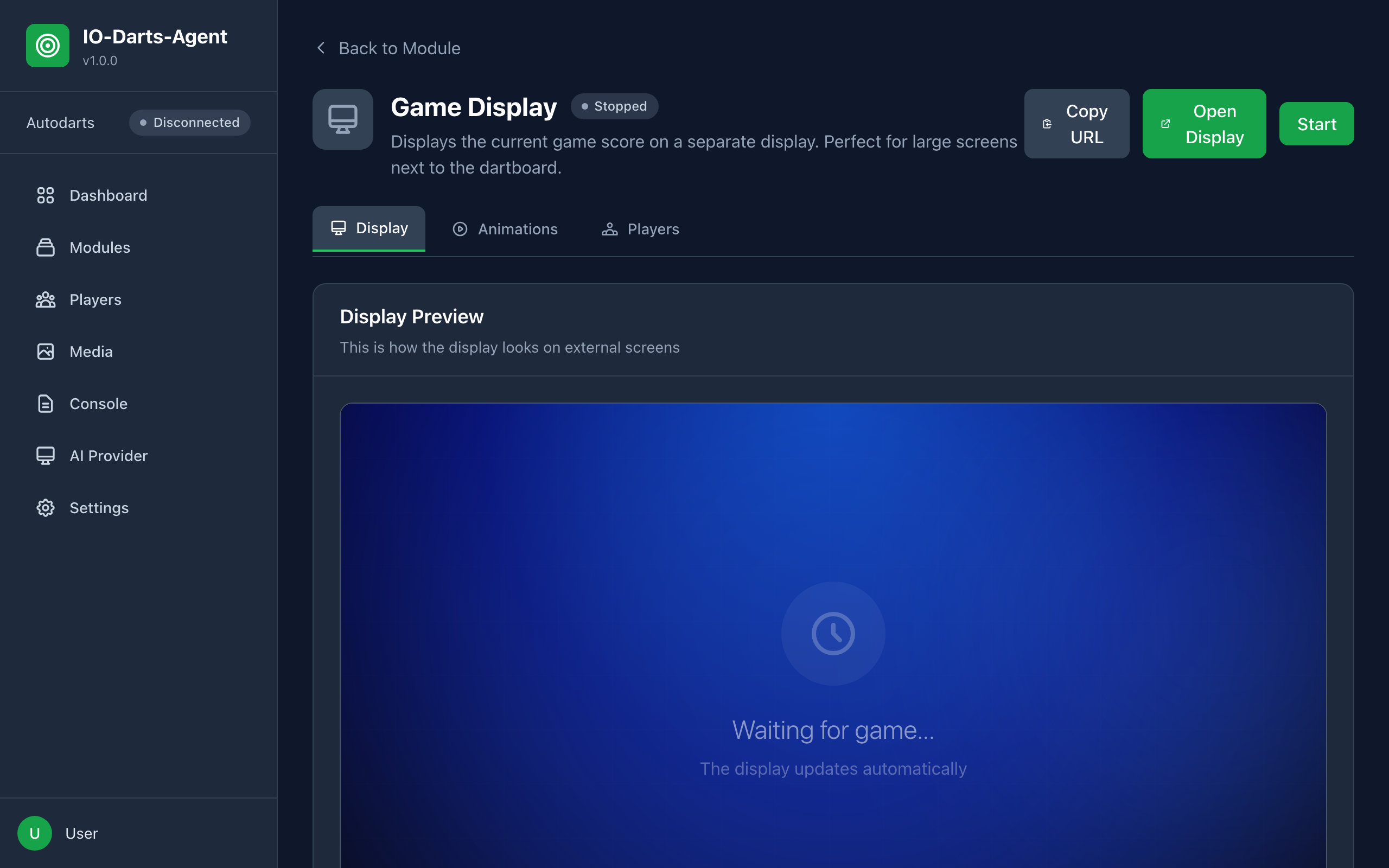
The configuration has three tabs: Display, Animations and Players.
Open the display on another device
The Display tab has a preview and the buttons Open Display and Copy URL. The display URL is:
http://192.168.1.100:3000/module-ui/game-display/
Replace 192.168.1.100 with the IP of your hub machine. The device must be in the same network. Switch the browser to fullscreen (F11). http://192.168.1.100:3000/display also redirects to the display.
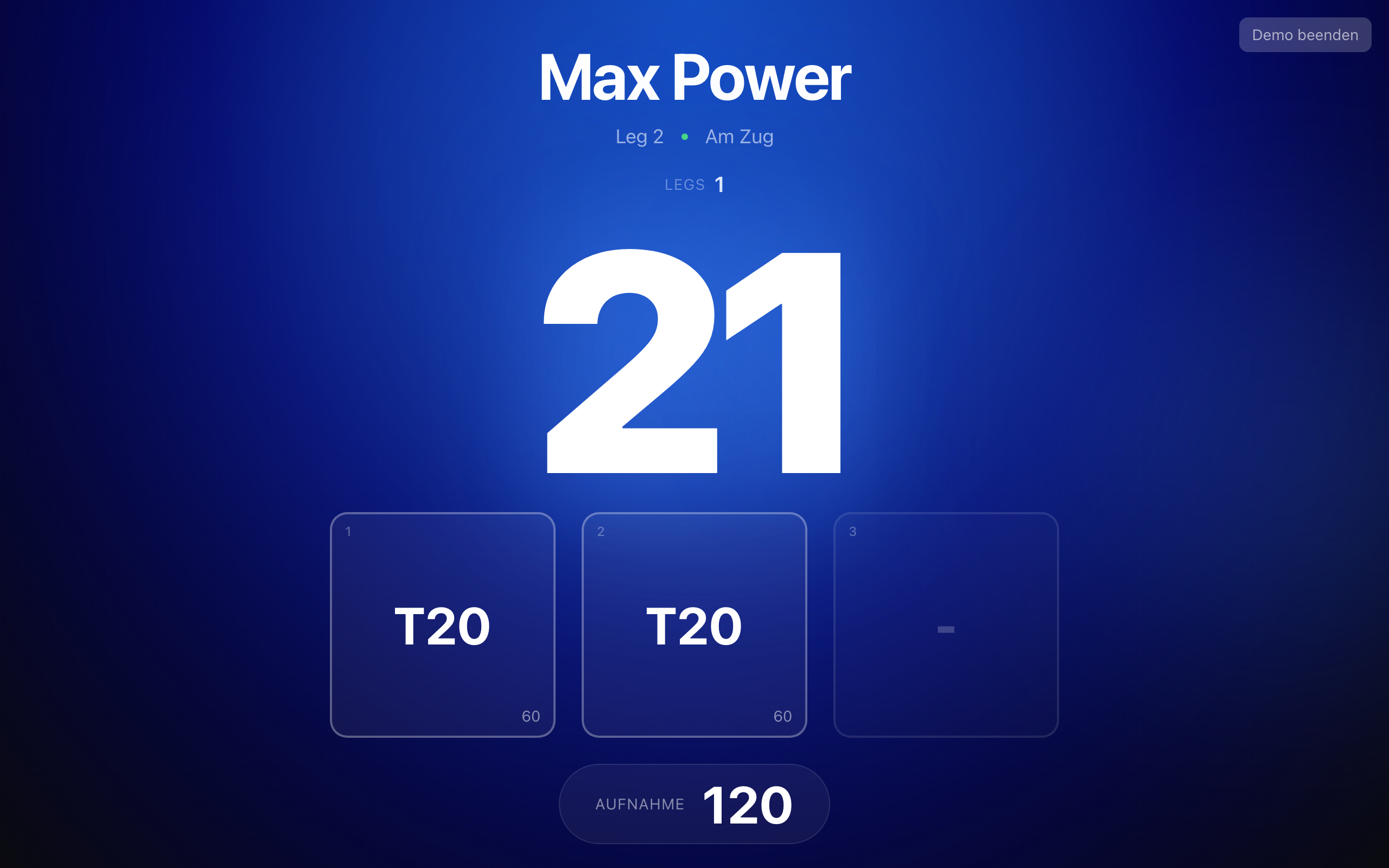
Display elements
| Element | Description |
|---|---|
| Player name | Large at the top, background in the player color |
| Score | Remaining points, very large |
| Checkout | Suggestion as soon as a finish is possible |
| Dart boxes | The three throws of the current turn |
| Turn | Sum of the current turn |
| Other players | Bar at the bottom with all other players |
| Game info | Optional: game mode, legs, double in/out |
Display settings
| Setting | Description |
|---|---|
| Display Name | Name of the display |
| Idle Mode | What to show without an active game: Show Last Game Score (default), Black Screen or Custom Image |
| Idle Image URL | Image for the idle mode "Custom Image" |
| Match Started Mode | Default (Game On! screen) or Custom Image/GIF |
| Match Started Image URL, Match Started Duration, Game On Background Color | Look of the match start screen |
| Match Results Display Duration | How long results stay after the match ends (0 = until dismissed manually) |
| Match Results Background Color | Color of the results screen |
| Show Checkout Suggestions, Checkout From Score | Show or hide checkout paths, default from 170 |
| Show Other Players | Bar with other players |
| Show Game Info, Game Info Position, Game Info Size, offsets | Game info overlay in a corner |
In a Cricket game the display switches to the Cricket view by itself: the points of the active player large ("Points against" in Cut Throat), below them the marks per field from 20 to 15 and Bull (/ one mark, X two, ⊗ closed). Fields every player has closed are dimmed. The other players are listed small below with points and marks.
After the match ends the display shows a results table with chalkboard, statistics (e.g. averages, darts thrown) and final scores.
Animations
In the Animations tab you switch on Enable Animations and set a Default Animation Duration. Each event has its own animation:
| Animation | Trigger |
|---|---|
| 180 Animation | 180 thrown |
| Bull Animation | Single bull (25) |
| Double Bull Animation | Bullseye (50) |
| High Score Animation | Turn from a score (setting From Score), once per turn after the third dart |
| Checkout Animation | Successful checkout |
| Leg Win Animation | Leg won |
| Match Win Animation | Match won |
| Bust Animation | Bust |
| Cricket: Field Closed Animation | Cricket: a player closes a field with the third mark (once per field and player in a leg) |
| Cricket: Strong Turn Animation | Cricket: turn from a number of marks (setting From Marks, default 6), once per turn |
In Cricket Bull, Double Bull, Leg Win and Match Win play as well; 180, High Score and Checkout are off there.
Per animation:
- Type: Disabled, Built-in, GIF or Video
- Media URL: GIF or video (upload, pick from the library or an external URL)
- Sound URL: optional sound
- Duration
- For leg and match win also: Show Winner Name, Show Statistics, Effect (None, Confetti, Fireworks, Sparkles), Background Color and Text Color
Below the animations you find the animation generator for creating animations with AI.
Player-specific animations
In the Players tab you set custom animations for individual players. The list shows all players from player management.
- Click Configure next to a player
- Choose the animation: 180 Animation, Leg Won, Match Won or Checkout
- Choose the Animation type (Built-in, GIF, Video, None) and enter GIF/Video URL and Sound URL
- Save
How it works:
- A player animation replaces the global animation when this player triggers the event
- Without a player entry the global animation is used
- Players with their own animations are marked Custom animations active
Darts Caller Module
The Darts Caller announces scores, checkouts and game events.
What it announces
- Scores after each turn
- Checkout requirements ("You require ...")
- Special calls: 180, bust, no score, game shot, match shot, game on
- Player names on player change
- In Cricket/Tactics: "<field> closed!" (10 to 20, Bull) instead of score/checkout/180/bust/bull/double-bull, and "<N> marks!" from an adjustable threshold (default 6) at the end of a turn; game on, player name on change, game shot and match shot are kept
Configuration
All settings are on the caller page (under Modules > Darts Caller, button Configure caller). Click Save. Changes apply right away, also while the module is running; no restart is needed.
| Setting | Description |
|---|---|
| Caller Type | Audio source of the calls (see below) |
| Language | German or English. Used for the browser voice and for new voice packs. Browser TTS and ElevenLabs Live AI speak English announcement texts. |
| Voice, pitch, speed | Browser TTS only: system voice of the browser, pitch and speed (50 to 200 %) |
| ElevenLabs voice | With ElevenLabs Live AI the voice of the live calls, with AI Voice Pack the voice for new voice packs |
| Stability, similarity | ElevenLabs Live AI only |
| Audio folder | Custom Audio Files only: folder with the MP3 files (default caller/default) |
| Volume | 0 to 100 % |
| Delay | Wait time before a call, 0 to 2000 ms |
| Caller behavior | What is announced: scores, high scores only (100 and more), 180, bust, bull, bullseye, player names, required score ("You require ...") with an upper limit, game on, game shot |
| Call Closed Fields, Call Strong Turns, Strong turn from marks | Only active in Cricket/Tactics: announce when a field closes, announce a strong turn, and the marks threshold for it (3 to 9, default 6) |
Test Voice speaks right away with the current, unsaved settings for Browser TTS. For the other caller types the test triggers a 180 through the running module and uses the saved settings, so save first.
The module detail page shows the same settings as a generic form in the Configuration section. Both places save to the same configuration. There you also find Enable Caller.
Older configurations: if you set up the caller with an older version, the hub moves the values into the current format automatically at startup (for example voice type, system voice, ElevenLabs voice, selected voice pack, announcement switches and checkout limit). The file dist/config/modules/darts-caller.json is written in the new format the next time you save. Settings the caller cannot implement are dropped: custom TTS server URL, event sounds, text templates and player specific settings.
Caller types
| Caller type | Playback |
|---|---|
| Browser TTS | The browser's text-to-speech. The call plays in an open tab of the hub web interface. |
| AI Voice Pack | Pre-generated MP3 files of a voice pack. Played on the speakers of the hub machine. |
| ElevenLabs Live AI | Every call is generated live at ElevenLabs. Played on the speakers of the hub machine. |
| Custom Audio Files | Your own MP3 files from a folder (for example score_60.mp3, 180.mp3, game_on.mp3, bust.mp3). Played on the speakers of the hub machine. |
For playback on the hub machine the hub uses afplay (macOS), PowerShell (Windows) or on Linux mpg123 or ffplay (from ffmpeg). On Linux one of the two must be installed, otherwise the speaker stays silent.
Set up ElevenLabs
The Darts Caller uses the ElevenLabs key from the AI Providers settings. The caller has no key field of its own.
- Enter your API key under AI Provider > ElevenLabs and enable the provider
- Restart the Darts Caller module so it picks up the key
- On the caller page choose the Caller Type ElevenLabs Live AI or AI Voice Pack. The list of your ElevenLabs voices is loaded.
Without a key the caller page shows ElevenLabs not configured with a link to the settings.
Voice packs
A voice pack contains all calls as pre-generated audio files. That means no delay and no running cost per call.
The Voice Packs section appears on the caller page with caller type AI Voice Pack:
- Create New Voice Pack (ElevenLabs only): generates all files with the selected ElevenLabs voice and language: scores 0 to 180, all possible checkouts 2 to 170, special calls and the Cricket phrases (closed fields 10 to 20 and Bull, marks 3 to 9). Progress is shown, and generation can be cancelled.
- Upload Voice Pack: import an existing voice pack as a ZIP file (also without ElevenLabs)
- Available Voice Packs: select a pack (saved and used immediately) or delete it
- Generate Missing Announcements: appears per voice pack once ElevenLabs is configured. Generates only the files the pack is still missing (for example after new phrases such as the Cricket calls), without changing the pack's name. Only costs ElevenLabs credits on a click; missing files are otherwise simply skipped when announcing.
Player names: with a voice pack active and ElevenLabs set up, the caller detects new players at match start and generates their names automatically with the pack's voice.
TTS cache
In ElevenLabs Live AI mode the hub stores generated calls in a cache (dist/data/tts-cache). Repeated phrases are played from the cache and not requested from ElevenLabs again.
AI Providers
AI Provider in the sidebar manages the AI providers. All of them are optional.
| Provider | Use in the hub |
|---|---|
| OpenAI | Text models for modules |
| Anthropic | Text models for modules |
| Ollama (Lokal) | Local text models, no API key, default URL http://localhost:11434 |
| ElevenLabs | Speech synthesis for the Darts Caller |
| Stability AI | Image models for modules |
| Runway ML | Videos for the animation generator |
| Higgsfield | Videos for the animation generator, plus image models |
| Replicate | Various models for modules |
The built-in modules use ElevenLabs (Darts Caller) and Runway and Higgsfield (animation generator). The other providers are available to modules through the hub interface.
Set up a provider
- Click a provider to expand it
- Enter the API Key (for Ollama the Base URL instead). A stored key is not shown; an empty field keeps it.
- Choose the Default Model
- Click Save and then Test Connection
- Switch the provider on or off with the toggle on the right (only possible once it is configured)
Keys are stored on the hub machine in dist/config/ai-providers.json, in plain text. They only leave the hub towards the respective provider.
Model lists
- OpenAI and Anthropic: as soon as a key is saved, the hub loads the models this key may use live from the provider. Until then a built-in list applies. If a saved model is no longer offered, a hint appears and the first offered model is preselected.
- Higgsfield: fixed catalog with 20 text-to-video and 10 text-to-image models. There are two selects: Default Model for video (default: Kling 3.0 Standard) and Image model (default: Soul Standard, listed as "SOUL").
- Runway: fixed catalog with 23 text-to-video models from the Runway API (default: Gen-4.5), visible even without a saved key. If a saved model is no longer offered (e.g. Gen-3 Alpha Turbo), a hint appears and Gen-4.5 is preselected. Until you save, the hub uses Gen-4.5 as well.
- The other providers use a built-in list.
Runway
- The Default Model decides which model the animation generator uses. Gen-4.5 is Runway's own model and costs 12 credits per second. Prices of the other models are listed at docs.dev.runwayml.com/guides/pricing (opens in new tab).
- Animations are made with text-to-video, without a placeholder image. The hub adapts every request to the selected model: allowed aspect ratio matching the orientation (720p preferred), allowed duration (closest value), audio switched off and the prompt cut to the model's maximum length.
- A generation is sent exactly once. If Runway answers with a server error or not at all, the task may still have been started and billed. The hub therefore does not repeat it automatically, the job is reported as failed. Check the Runway dashboard before trying again. Status requests are still retried.
Higgsfield
- Enter the key in the format
KEY_ID:KEY_SECRET(key ID and secret from the Higgsfield Console, separated by a colon). - The hub adapts every request to the selected model: allowed duration, supported aspect ratio (the closest one is used) and audio switched off. Animations play muted, so native audio would only add cost.
Cost: every generation at Runway, Higgsfield, ElevenLabs or other providers uses credits there.
Animation Generator
The animation generator creates short animations for the Game Display with AI. You find it in the Game Display configuration in the Animations tab (visible when Enable Animations is on).
Workflow
- Choose the Engine: Runway or Higgsfield. An engine without a key is marked "not set up". Enter the key under AI Providers.
- Select Style: Fire, Ice, Neon, Gold, Cartoon, Minimal, Electric, Confetti, Smoke or Stars. Or a Custom Style with name and description.
- Select Events: 180, Bull, Double Bull, High Score (160+), Checkout, Leg Win, Match Win, Bust. All and None select all or none.
- Generate Animations: each selected event becomes its own job (batch).
Jobs
Generation Jobs lists every job with status (Pending, Queued, Generating..., Completed, Failed, Cancelled) and progress.
- Running jobs can be cancelled
- Completed jobs have a Preview and a Use button that sets the animation for that event in the Animations tab
- Clear Finished tidies up the list
Result
- The video is converted with
ffmpeginto a transparent WebM (the black background is keyed out) so the animation sits on top of the score. - If
ffmpegis not installed or the conversion fails, the original is kept as MP4. - Files are stored in the media library under Animations in the folder
ai-generated/<style>.
A video generation can take several minutes depending on the provider and costs credits there.
Media Library
Media in the sidebar opens the media library for images, sounds and animations used by modules.
- Tabs Animations (GIF, MP4, WebM, MOV), Sounds (MP3, WAV, OGG, WebM audio) and Images (PNG, JPG, WebP, SVG)
- Upload with the button or drag and drop, up to 50 MB per file
- New Folder for structure (only empty folders can be deleted)
- Search files
- Preview: clicking a file opens it large. Animations play with sound in a loop on a checkerboard so the transparency is visible, sounds play in an audio player. Use the arrow keys or Previous and Next to browse, Escape closes.
- Copy URL to use a file in a module (also works when the hub is opened over HTTP in the LAN)
- Delete files
- Only files matching the tab are shown. Hidden files, such as the animation generator's job list, do not appear.
- The Darts Caller voice packs are not part of the media library; they live in
dist/data/voicepacksand are managed on the Darts Caller page.
In the animation and sound fields of the modules you can upload directly, pick from the library or enter an external URL.
Player Management
Players lets you create local player profiles.
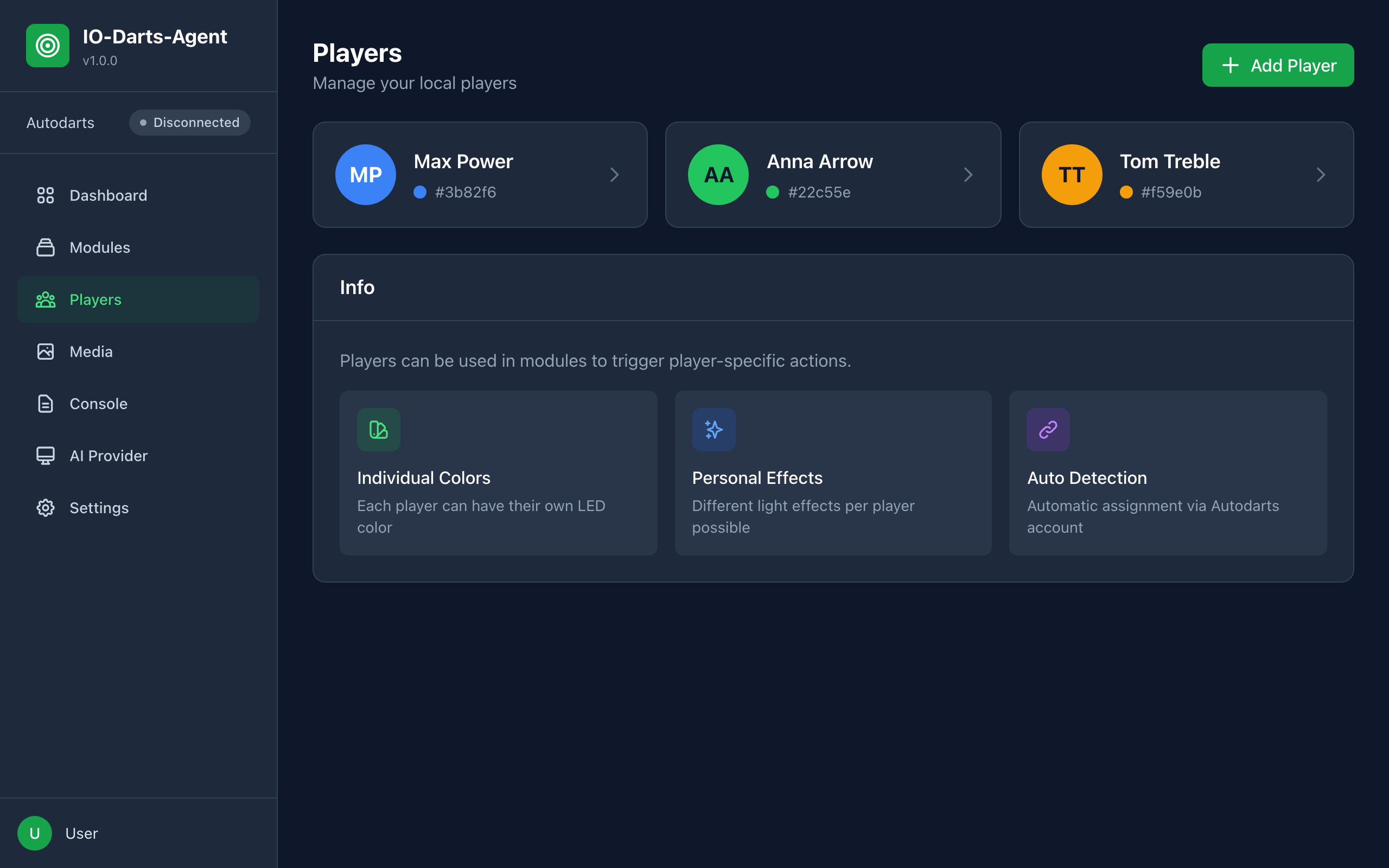
Create a new player
- Click Add Player
- Player Name: must match the name in Autodarts (case does not matter)
- Color: pick from the palette or enter a hex color code with Choose custom color
- Avatar: an icon for the player
- Autodarts User ID (optional): stored with the profile
- Click Create
What profiles are used for
- WLED: LEDs light up in the player color
- Game Display: player color on the display, player-specific animations
Console
The Console shows all events and module activity in real time.
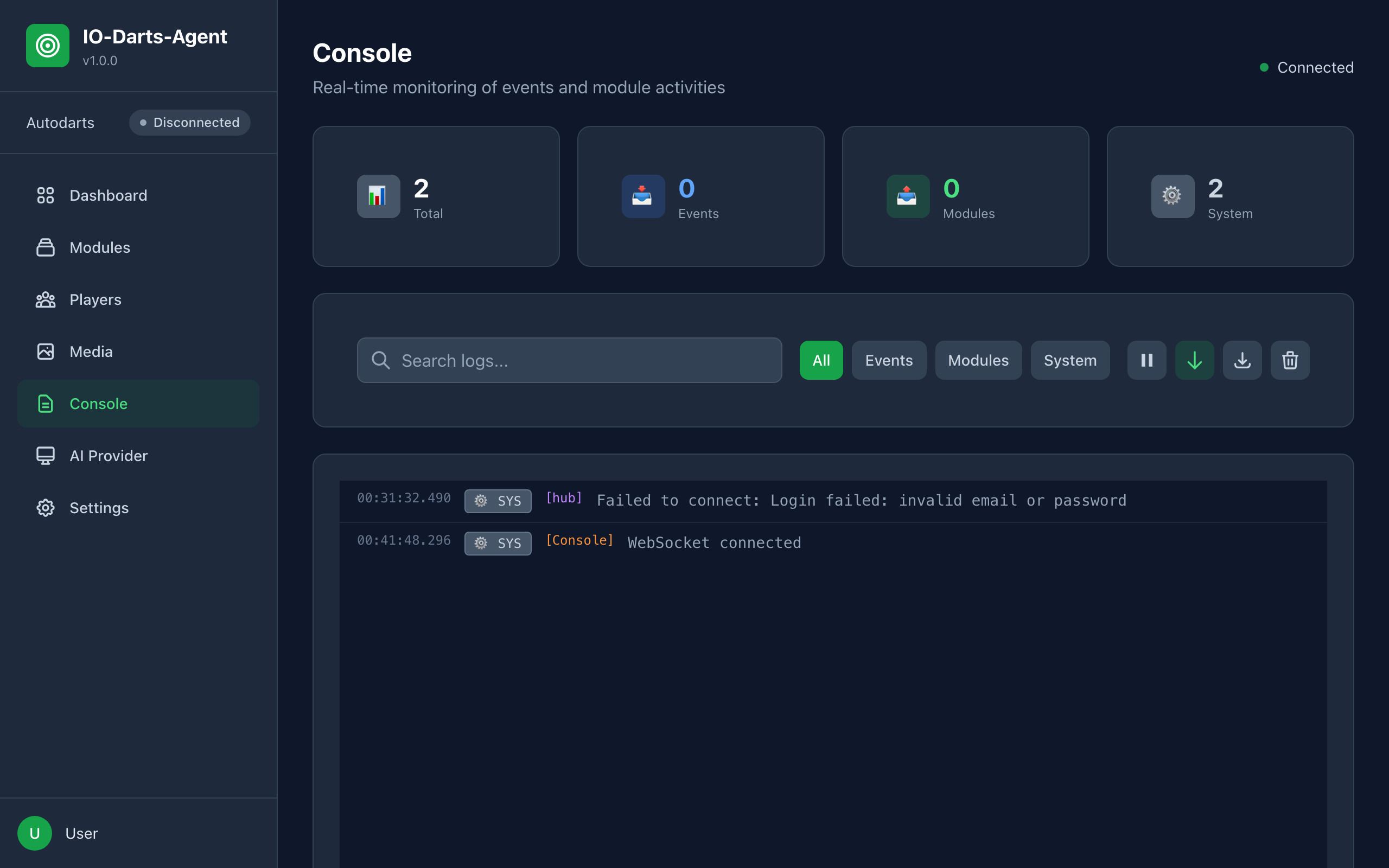
| Type | Meaning |
|---|---|
| Event | Event from Autodarts to the hub |
| Module | Action of a module (hub to devices) |
| System | System message |
Features: counters per type, filters, Search logs, Pause/Resume, Auto-scroll, Export logs, Clear logs and Max entries.
Useful to check whether events arrive and whether modules send commands.
Settings
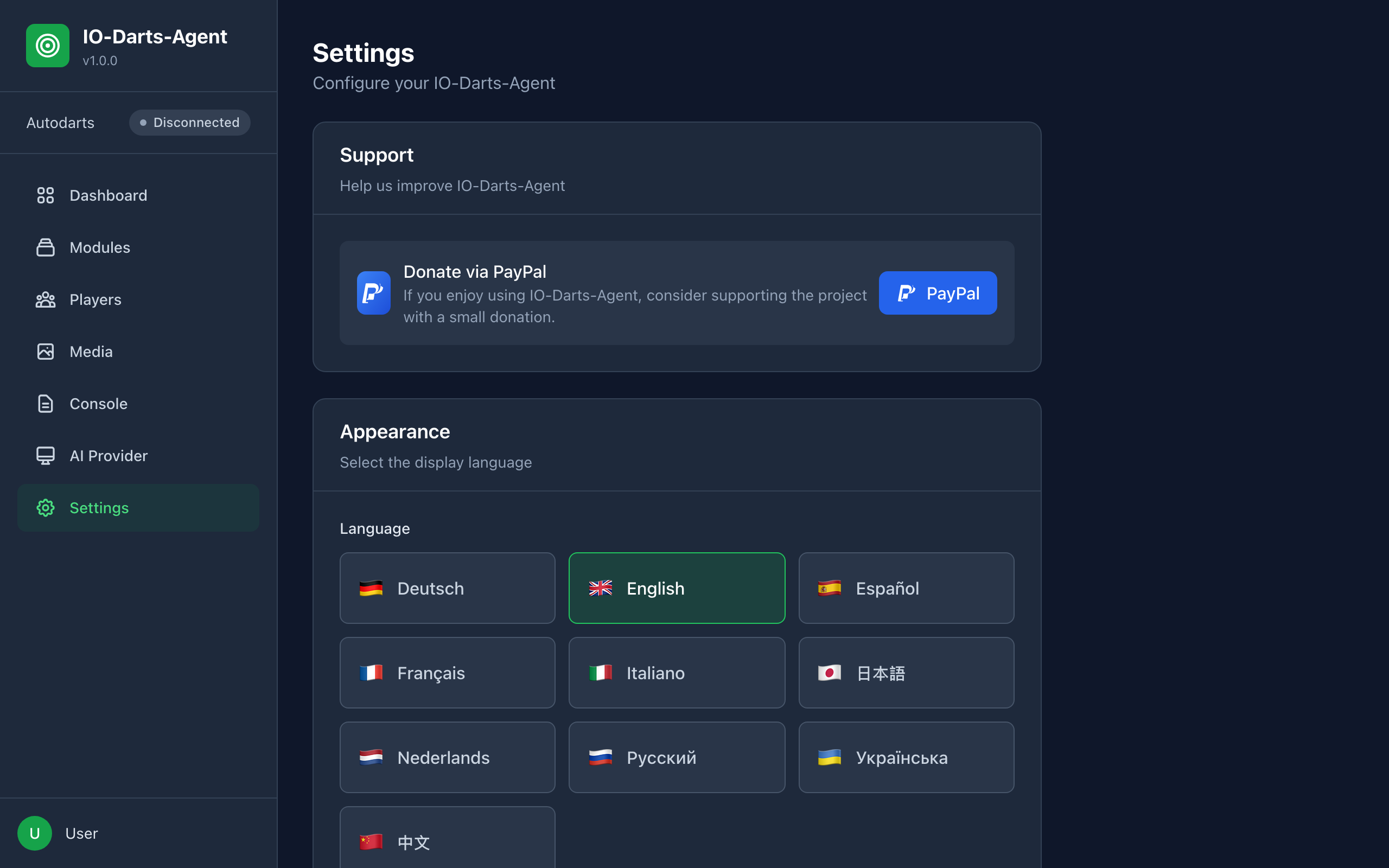
| Section | Content |
|---|---|
| Support | Donate via PayPal |
| Appearance | Interface Language: Deutsch, English, Español, Français, Italiano, 日本語, Nederlands, Русский, Українська, 中文. German and English are complete, the others partly translated. |
| Server | Host (default 0.0.0.0) and Port (default 3000). Changes require a hub restart: use Restart hub next to the hint; the page reloads when the hub is back. The host is stored but currently ignored: the hub always binds to 0.0.0.0. |
| Web Authentication | Switch the web interface login on or off, username and new password |
| Autodarts | Email, new password and board ID. An empty password field keeps the stored password. |
| Developer Mode | Unlocks the developer tools |
Save with Save.
Developer Tools
After enabling Developer Mode in the settings, Open Developer Tools opens a page where you simulate Autodarts events without a real board:
- Start Match with two players (name, color, start score), Finish Match, Cancel Match
- Throw Simulator: choose number and multiplier and click Throw
- End Turn (Player Change)
- Test Scenarios: run predefined sequences
This lets you test WLED, Game Display and the caller without throwing.
Installing New Modules
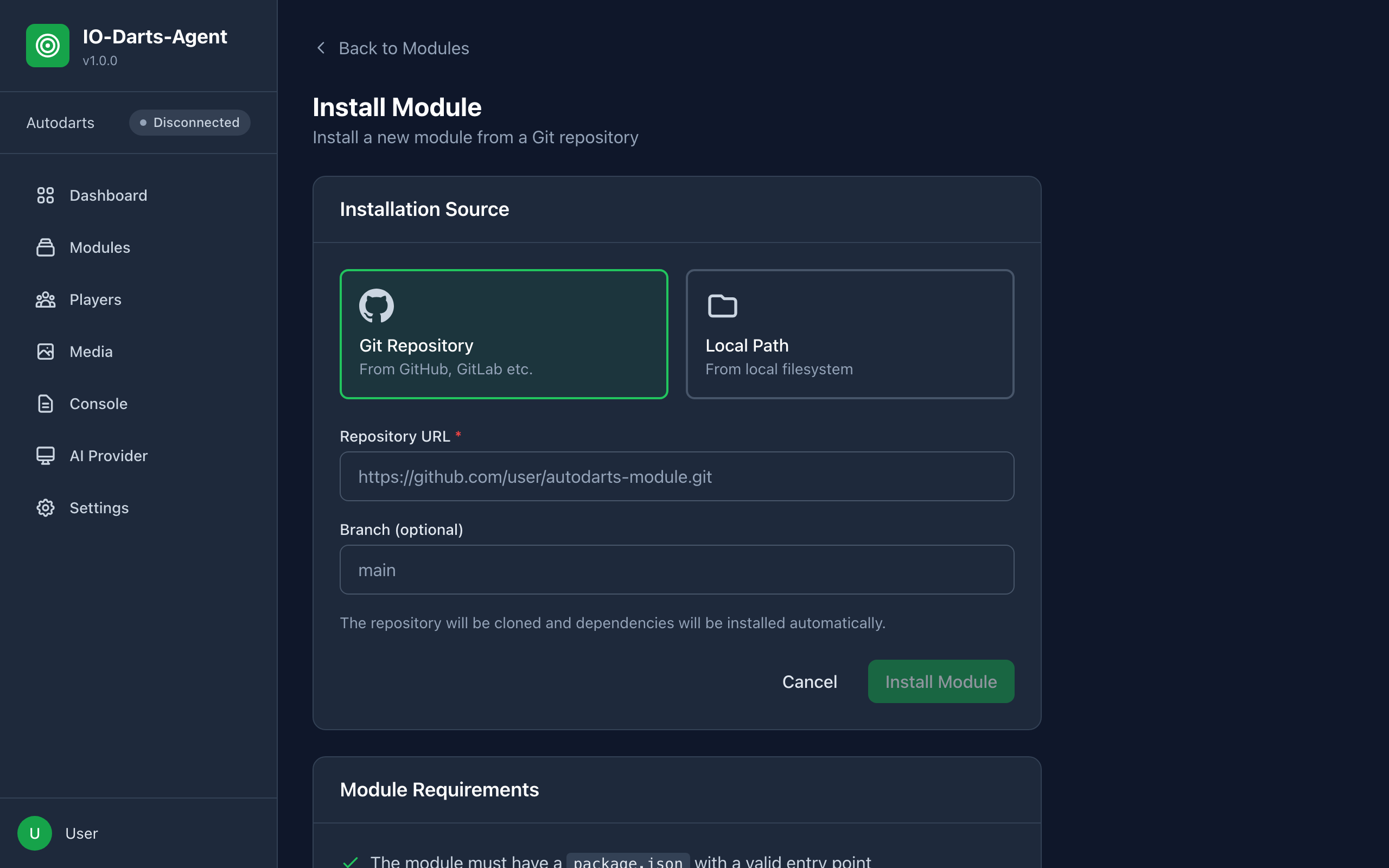
- Go to Modules and click Install module
Install from Git
- Choose Git Repository
- Enter the Repository URL, e.g.
https://github.com/user/autodarts-module.git - Optional: Branch (optional)
- Click Install. The repository is cloned and its dependencies are installed.
Install a local module
- Choose Local Path
- Enter the absolute path to the module folder under Module Path
- Click Install
Only install modules from sources you trust. A module runs with the permissions of the hub.
FAQ
Does the hub need to run all the time?
Yes, only a running hub processes events.
Can I use multiple boards?
A hub is assigned to one board. For several boards you need several hub instances.
Is my data uploaded anywhere?
The hub connects to Autodarts, to your own devices in the network (e.g. WLED) and to AI providers only if you set them up. Credentials and API keys are stored in plain text on the hub machine.
Can I open the display on a tablet?
Yes, open the display URL in the tablet's browser. The tablet must be in the same network.
My Autodarts account uses 2FA. What now?
Accounts with two-factor authentication are not supported. The login fails.
My LEDs don't respond
- Check the IP address of the WLED controller
- Open
http://192.168.1.100/json/statein the browser (with your controller's IP) - Check the console for incoming events
- Make sure the WLED module is running
Voice announcements don't work
- Check the Caller Type on the caller page and that Enable Caller is switched on
- With Browser TTS a tab of the hub web interface must be open
- With voice pack, ElevenLabs and custom audio files the sound comes from the speakers of the hub machine
- Check the volume and the console for errors
Troubleshooting
Server won't start
Error: listen EADDRINUSE: address already in use 0.0.0.0:3000
Port 3000 is in use. Stop the other program or change the port in the settings or in dist/config/hub.config.json.
No connection to Autodarts
- Check email and password under Settings > Autodarts (the message "invalid email or password" means wrong credentials)
- Check whether 2FA is enabled (not supported)
- Check the board ID
- Check the internet connection of the hub machine
WLED not responding
- Check the IP address
- Ping the controller:
ping 192.168.1.100 - Open the WLED interface directly in the browser
- Check the console
Display won't load
- Check that the hub is running
- Check the URL (must end in
/module-ui/game-display/) - Clear the browser cache or try another browser
Player colors are not used
- Check that a player profile exists
- The player name must match the Autodarts name
- Check that Use player color is enabled for the action
WLED color missing in single-player games
- The action of Player changed must be a color with Use player color
- This action is also used in single-player games
Voice pack generation fails
- Check the ElevenLabs key under AI Provider
- Check your character quota at ElevenLabs
- Restart the Darts Caller module after changing the key
- Check the server logs
Animation generator shows "AI Generation not available"
- The selected engine (Runway or Higgsfield) needs a key under AI Provider
- For Higgsfield use the format
KEY_ID:KEY_SECRET - Animations are not transparent: install
ffmpegand make it available on thePATH
Help and Support
- Check the console: most problems show up there
- GitHub Issues: report bugs or ask questions at github.com/Castorio/io-darts-agent (opens in new tab)
IO-Darts-Agent is an unofficial project and not affiliated with Autodarts.